Module 3: Introduction to 3D Modelling with Tinkercad
4. Precision Tools
For some projects, such as lab equipment or research prototypes, precise measurements are required.
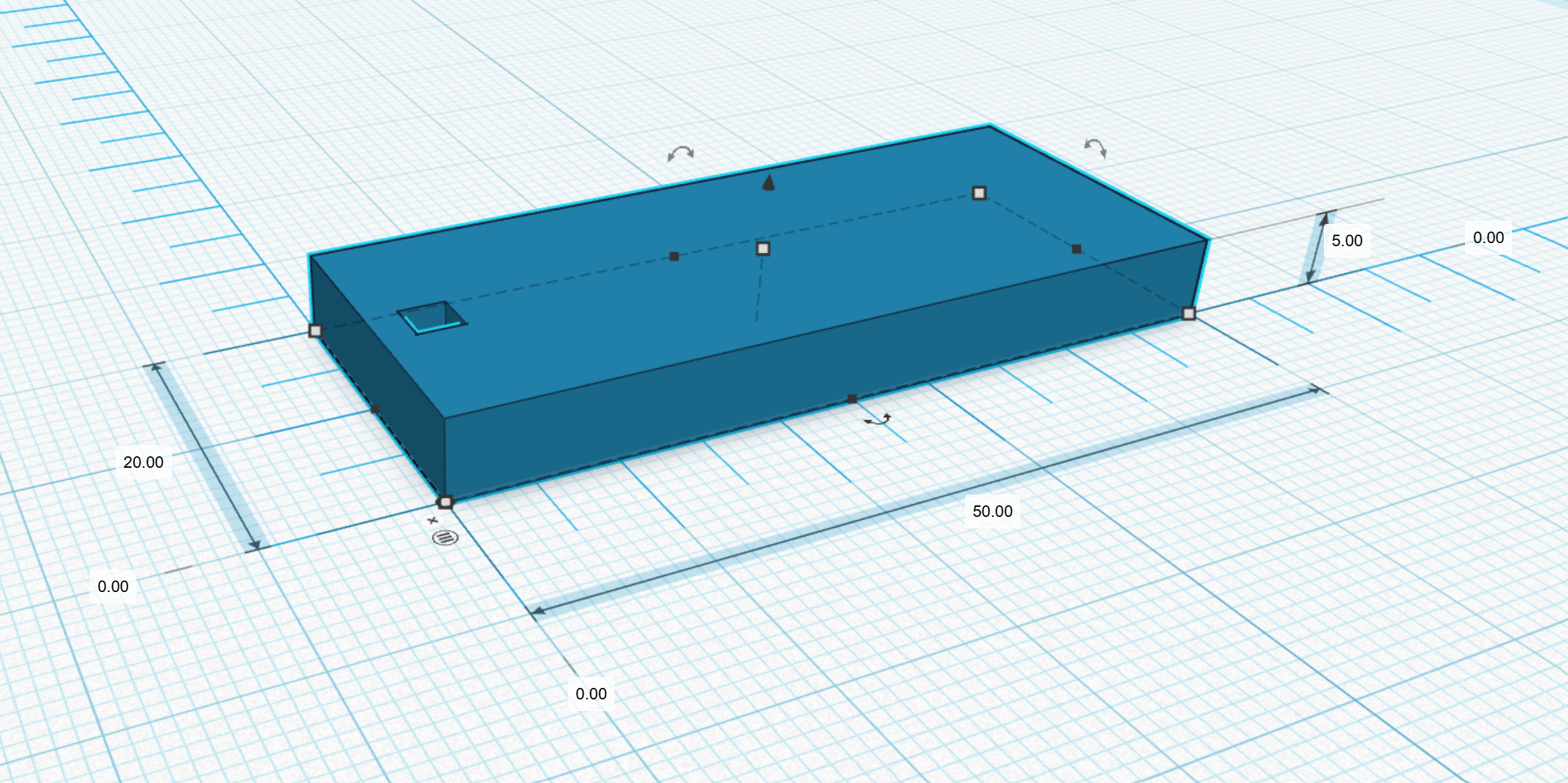
The Ruler Tool: The Ruler is placed on the Workplane to provide exact numerical values for length, width and height.
Click the Ruler tool on top right:
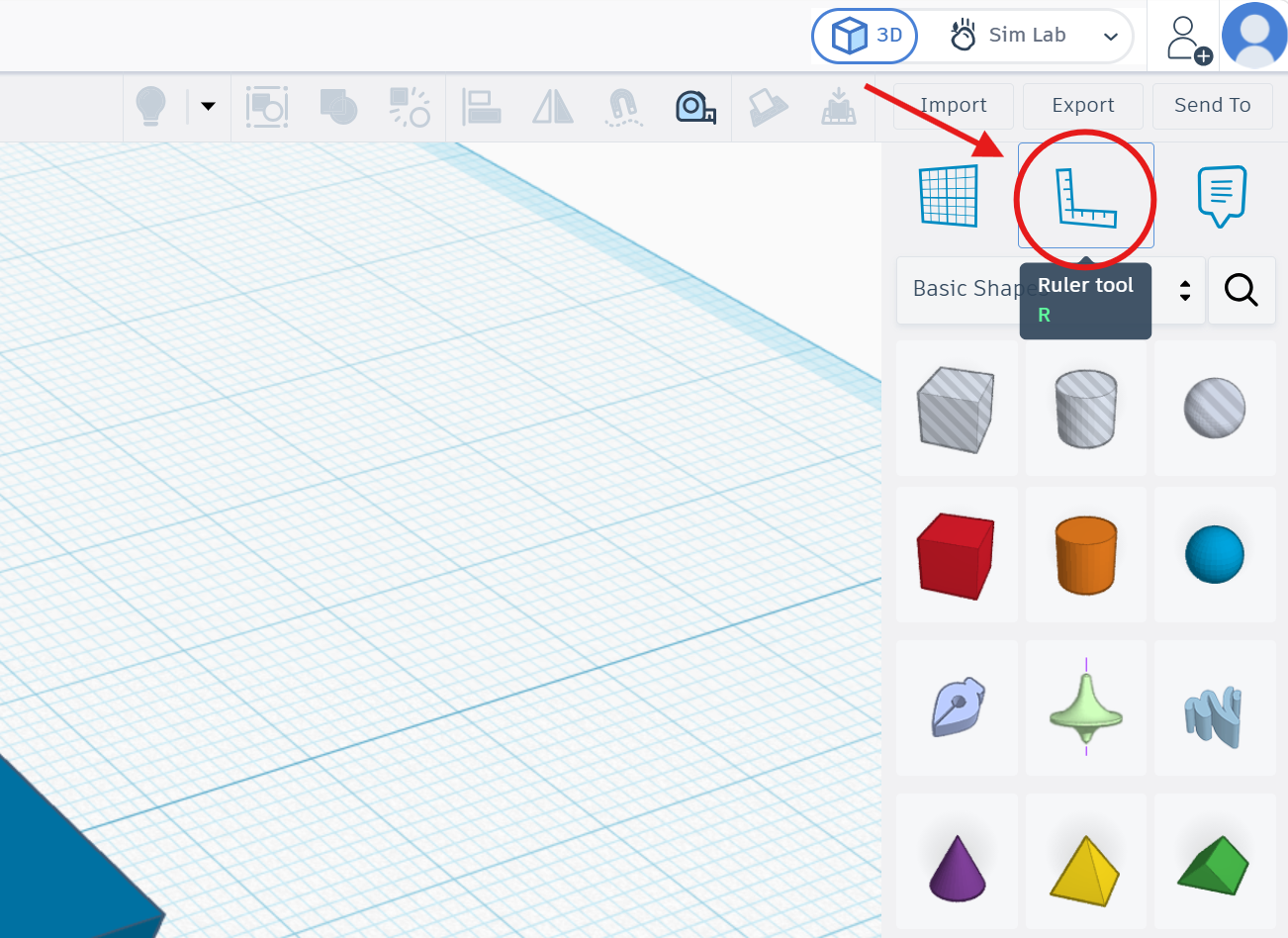
And place it in the corner of the object to see all dimensions of it as shown below. ⬇️
List of features for using the Ruler. ⬇️
|
Using the Ruler |
|
|
Enable Ruler |
Click the Ruler icon in the toolbar (or press R), then click a corner of your model to anchor it there |
|
Read distances |
With the Ruler active, hover over any handle on a shape -- a label shows the exact distance from the anchor point in mm |
|
Move by exact distance |
Select an object -- X, Y, Z input fields appear. Type a value and press Enter to move it precisely |
|
Check overall size |
Select all (Ctrl + A) -- W, D, H fields in the inspector show the total bounding box of everything |
|
Remove Ruler |
Press R again, or click the Ruler tool and click somewhere empty to clear the anchor |
The Align Tool: The Align function (L) is used to center or justify multiple objects along a specific axis. This ensures that holes or attachments are positioned accurately within a design.
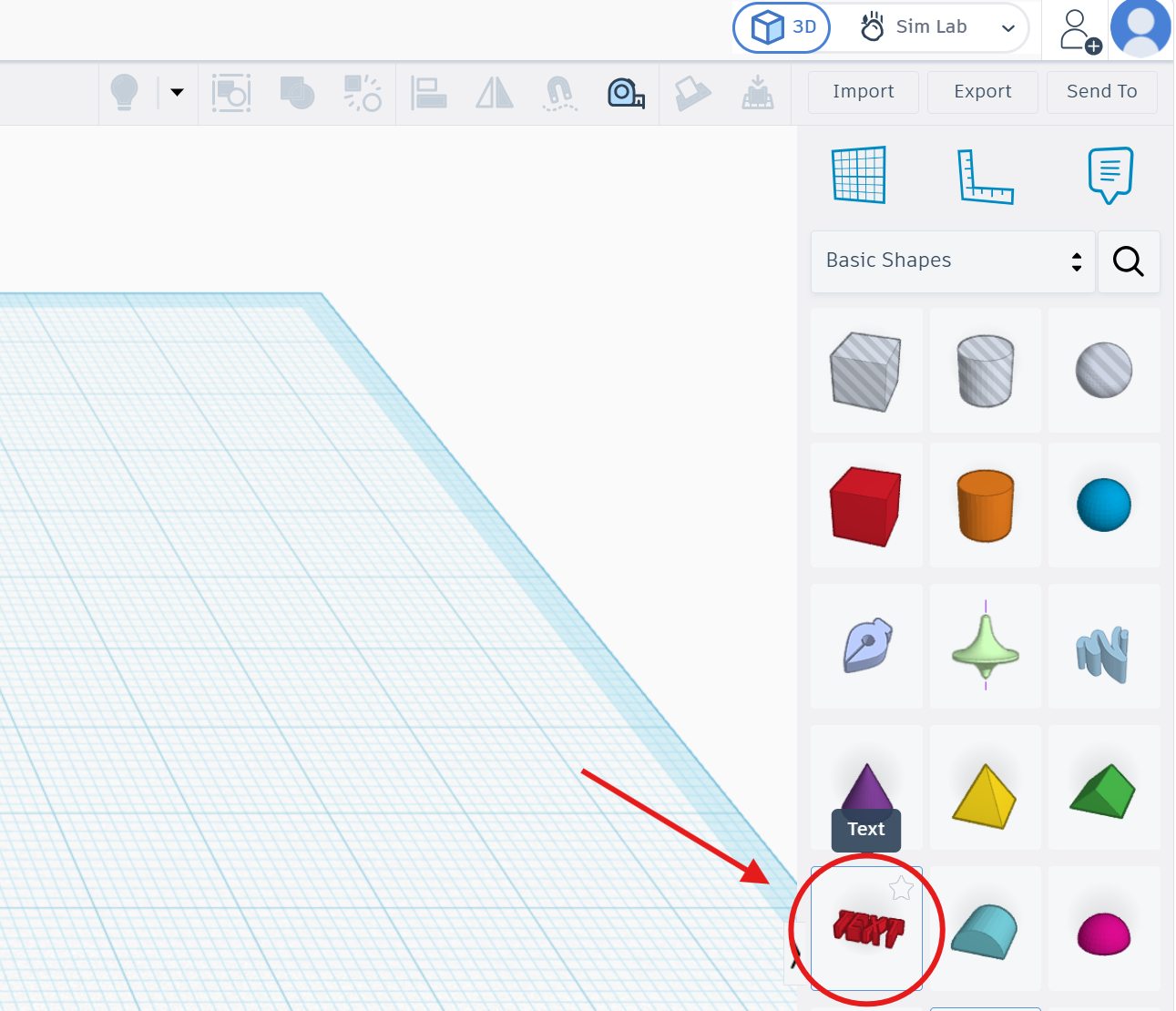
As an example, put a text into the object surface (drag the text tool and drop into the object surface).
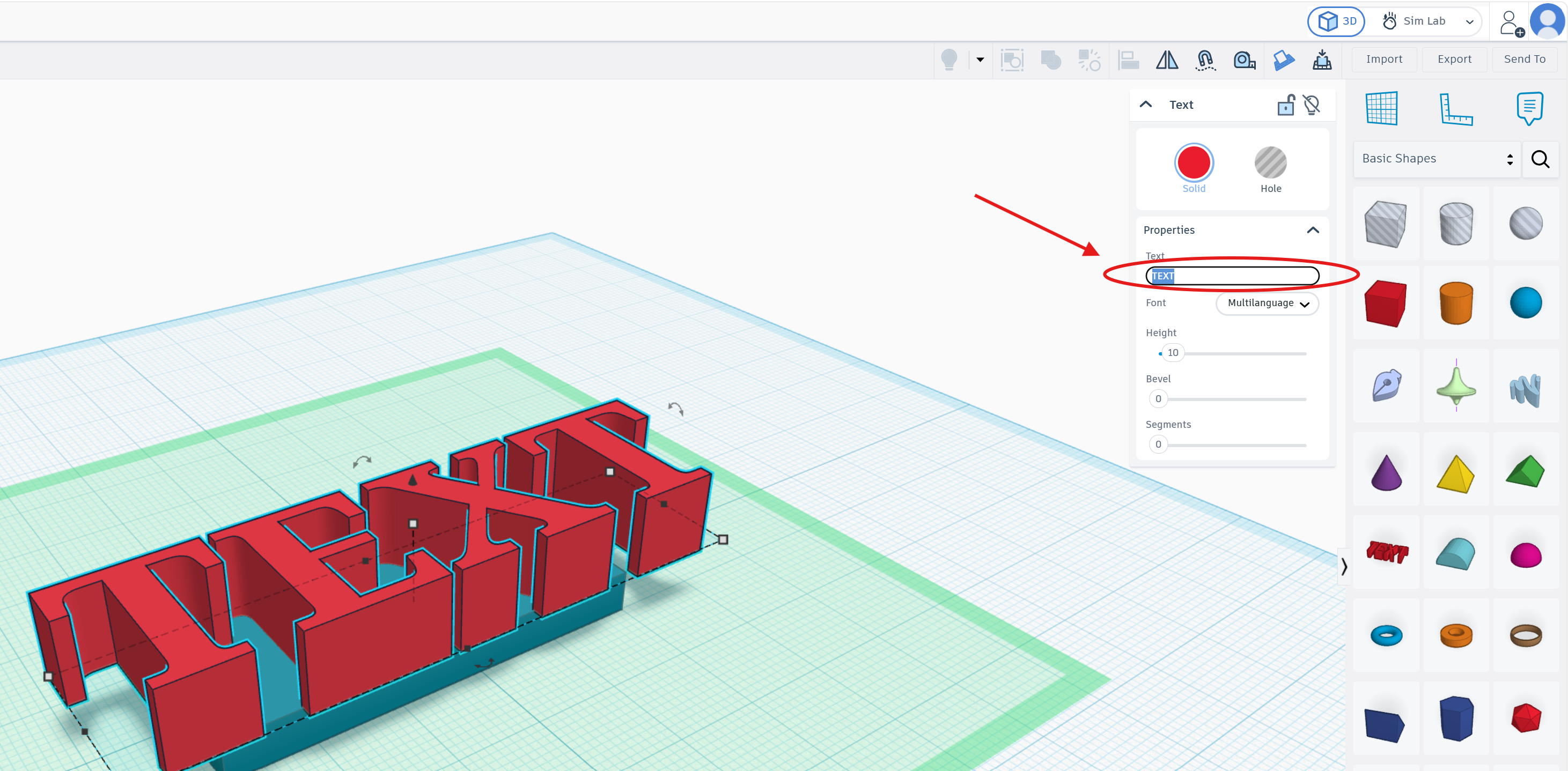
The "TEXT" settings can be changed in top right;
After adjusting the settings, select both objects and click the "Align Tool" in top right as shown.
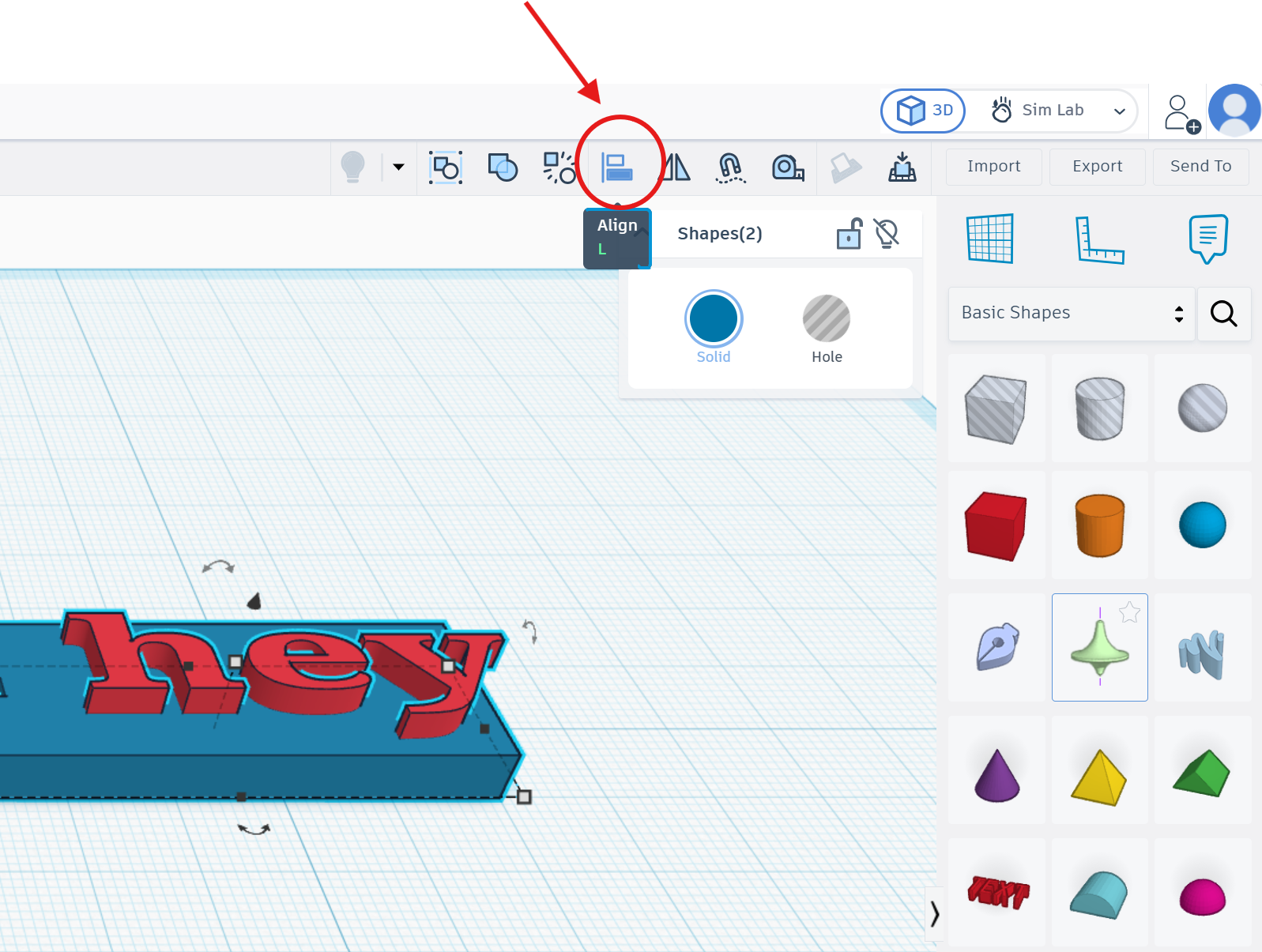
There will be black circle points to align the text. Select the desired align point.
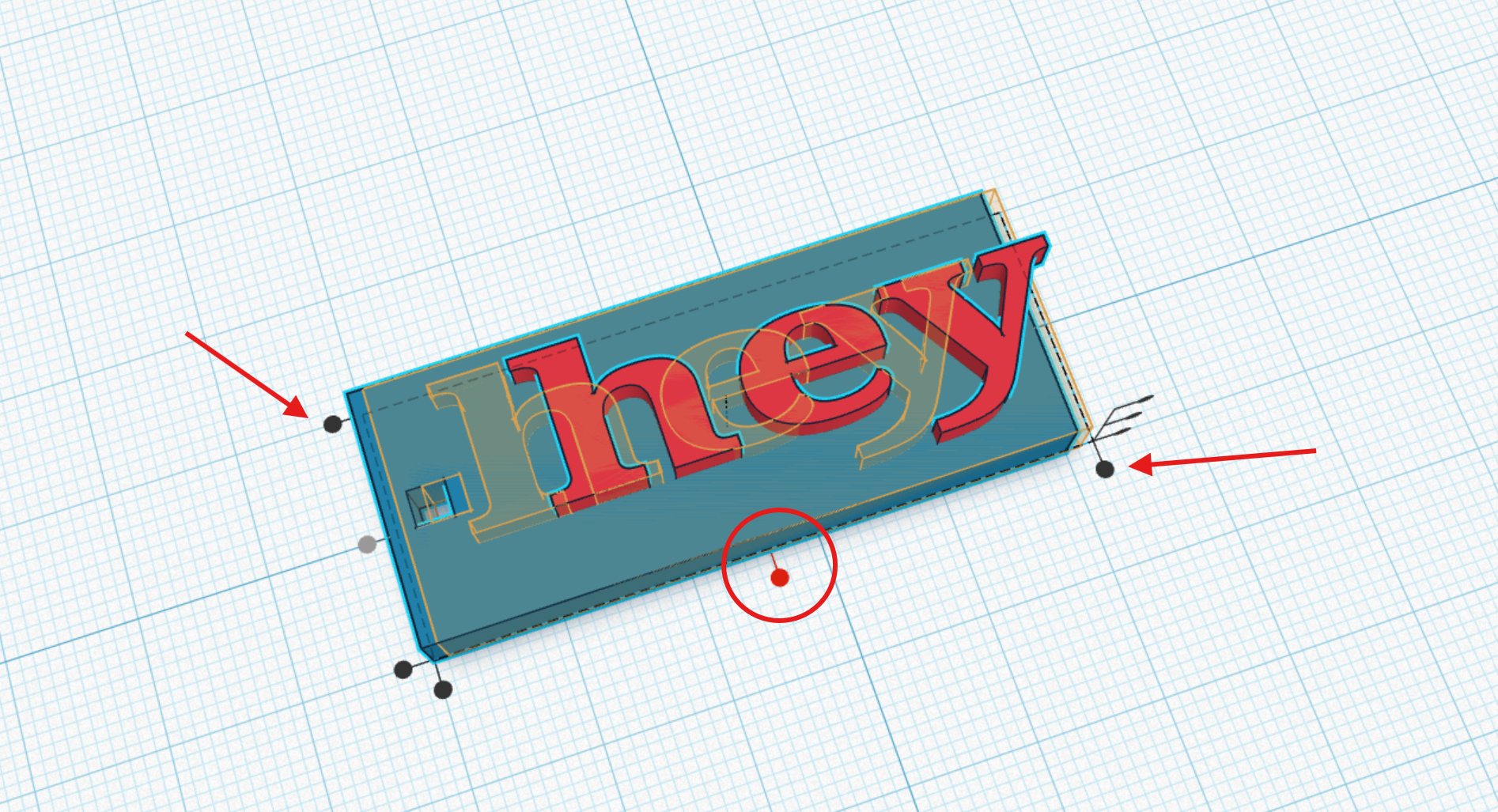
As a result, the text "hey" will be centered.
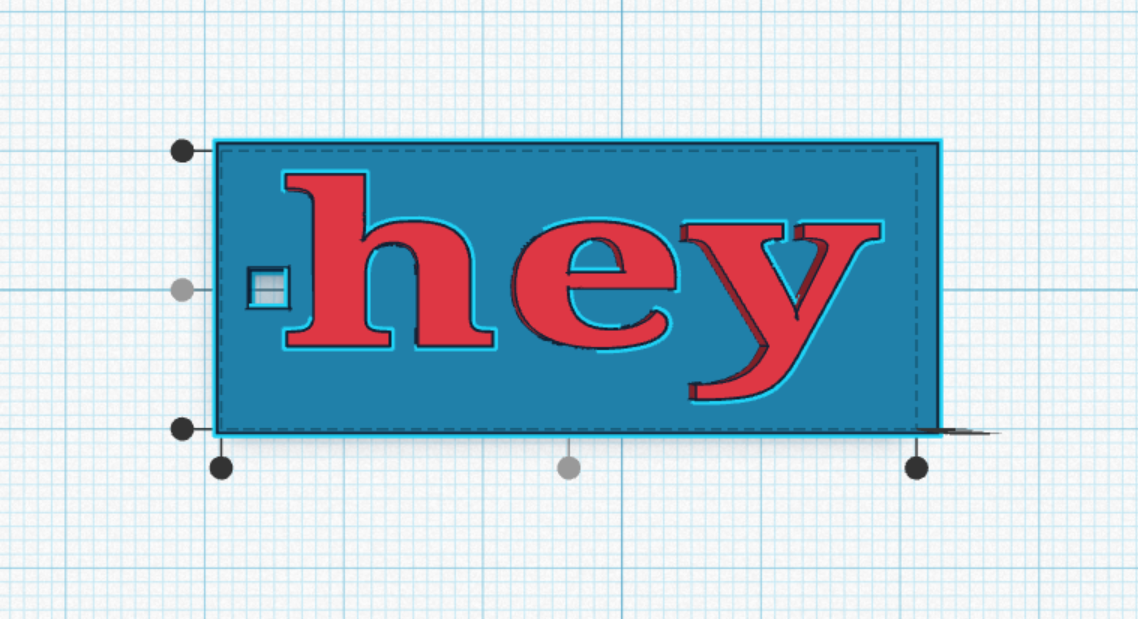
List of features for using the Align Tool. ⬇️
|
Using the Align Tool |
|
|
Select shapes to align |
Hold Shift and click each shape you want to align, or drag a selection box around them |
|
Open Align tool |
Click the Align button in the top toolbar (looks like stacked lines), or press L |
|
Alignment handles appear |
Black dots appear on the edges and centre of the selection bounding box |
|
Align to an edge |
Click a dot on the left, right, front, or back edge -- all selected shapes snap to that edge |
|
Centre on one axis |
Click the centre dot on the left/right axis to centre horizontally, or the front/back axis to centre in depth |
|
Centre on Z (height) |
Click the centre dot on the top/bottom axis to centre all shapes at the same height |
|
Align to a specific shape |
Click one shape last (it gets a lighter highlight) -- Tinkercad aligns all others to that shape instead of the group bounding box |